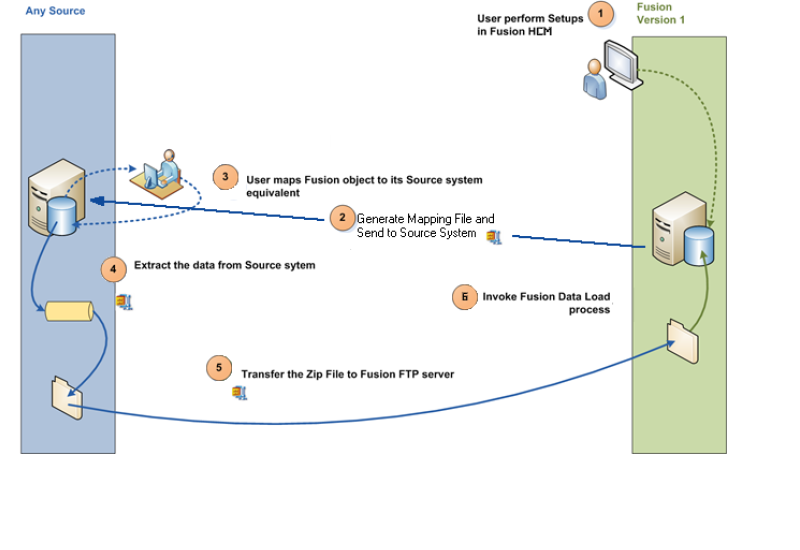
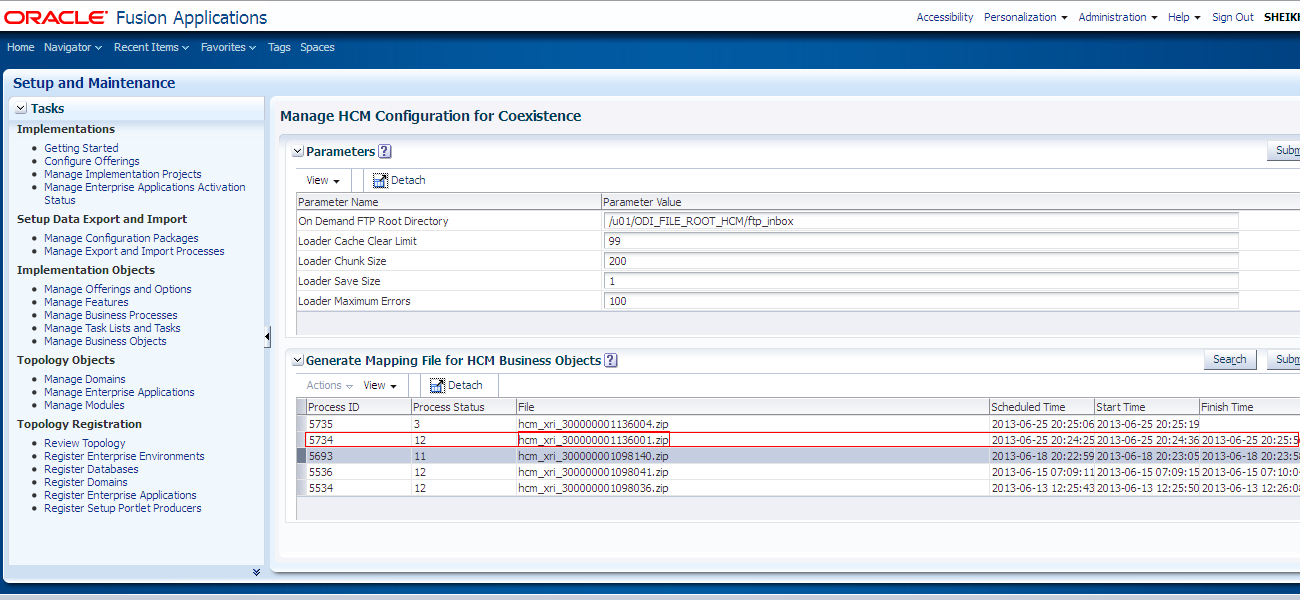
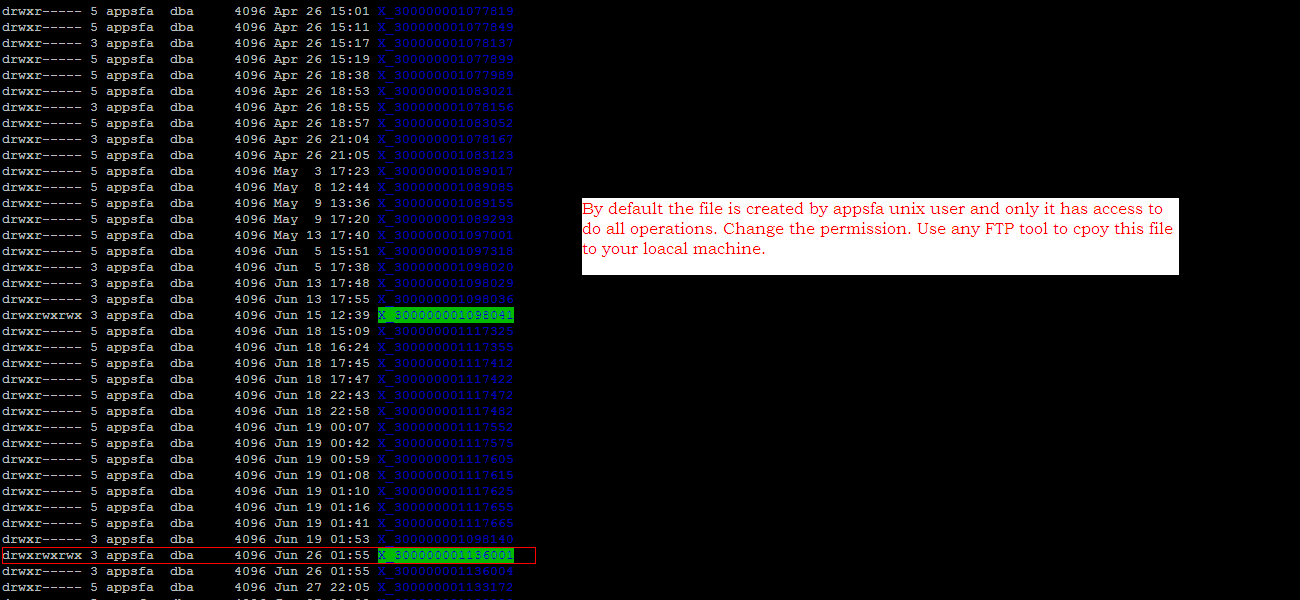
In my previous post I explained how to generate cross reference files from Fusion. I will use those files to generate my data file. You have to create data file as per the format which can be read by FBL. The file must be '|' delimited flat file. It should have column which are supported by FBL.
Now the question is how will you know what are the columns it looks for. Oracle has published a column mapping spread sheet which is there at Data Conversion Reference Library. If you do not have access to it, then as per the MOS document Oracle Fusion Human Capital Management File-Based Loader V1.1 [ID 1533860.1] ask your COE to send an email to Oracle. This has all the required resources for HCM Data Conversion.
One of the important files, is the column mapping spread sheet which you can get it from here. You need to filter the business object in that spread sheet. For my case it is Location. So I filtered it and it looks like the next picture.
 This spreadsheet explains what should be the columns present in the flat file. You can maintain any order of the columns in the flat file but the first row of your file should be the column names.
Here is the sample data file which I used for my test.
If I open my data file in excel, it looks like this.
 You can see that I have provided LOCATION_ID a value from my side which has nothing to do with LOCATION_ID stored in PER_LOCATIONS table in fusion. Only constraint is that it has to be unique. So you can have your own naming convention for this. Next as per the column mapping spread sheet the SET_ID value has to be taken from the SET_ID cross reference file. You will see that file in the in zip created as per my first post. Also keep in mind that date fields must have date format specified in the mapping sheet. If you do not maintain the format you are going to get the errors while loading the data in fusion. Here for location it has to be YYYY-MM-DD. Once you create the file you have to name it as per the Fusion standard. For location it is F_LOCATION_VO.dat. Create a folder named Location in your machine and put the F_LOCATION_VO.dat file inside it and then zip the Location folder and name the zip file whatever you want. I named it as LocationMehabub28.zip. You can specify any name you want.
You can load multiple business objects at a time. If you do that then you have to create separate folders for each Business object and inside each folder you have to put your data file with related objects like the next picture

Once you are done with putting all data files created as per the column mapping spreadsheet then take all folders and zip them. This zip file is going to be the file which will be uploaded to Fusion.
The flat files will be having naming convention as F_<BUSINESS OBJECT>_VO.dat.
One of the biggest challenges in FBL is creating these flat files. If you want to convert all objects in one shot then you have to create the relationship yourself. For example if you want to create departments along with location then you will create location data file by providing LOCATION_ID a unique value and then passing this value to LOCATION_ID column of department file. In this way you create the referential data integrity in the flat file itself. When you load the zip file in Fusion, it first extracts the individual business objects and then dynamically creates the loading order as per the data model created in HCM. There is a table which stores this loading order sequence of the HCM Data Model. So whenever you load business objects through FBL oracle knows which objects need to be converted first and accordingly it creates mapping information with data file and fusion ids.
Here is the link from where you can get the sample data files for each business object. The next step is to register the zip file in fusion. This is done by calling a composite HcmCommonBatchLoaderCoreInboundLoaderComposite. If you are a cloud customer oracle will give you the URL for the composite. But if you have on-premise installation, then log on to your Oracle Enterprise Manager Fusion Applications Control and search the composite under Farm_HCMDomain -> SOA->soa-infra-->default as shown in the next picture.

 Copy the URL and paste it in mozila firefox
Once you call the composite it will look like this
 Here under payload section you specify any unique value for RunControlID and ProcessInstance.
For ZipFileName specify the zip file which you created. For me it is LocationMehabub28.zip. For FileLocation, if you are SaaS/Cloud customer then Oracle will provide you the SFTP path where you need to copy the zip file. Generally you will put your zip file under ftp_inbox folder of the SFTP path. But if you are on-premise customer then your system administrator has to setup the SOA FTP Adapter. The instructions are documented in Fusion Applications Post-Installation Guide. Once your administrator has setup that, he can give you the host and unix path where you need to copy the zip file. For me the path has been setup as /home/appsfa/E_1. As I have copied the file under ftp_inbox, I have specified the FileLocation as ftp_inbox.
The next picture shows that I have put my file there.

Now let's see how will I tell Fusion how many Business Objects are there inside the zip file.
 As shown in the picture you specify the Business Object names under LBOList section of the payload. As I am only loading location, I have specified Location as the LBO. If you have multiple, then click on + sign to add them.
Now all these web-services are having security policies associated with them and you have to specify the User ID and password under WS-Security Section. This is the application user id and password who is having required privileges.
Once you submit you should get the No Response as shown in the next picture

This means the composite call is successful. Check in unix box the file should be removed from ftp_inbox.
 Now many of you might be asking where did fusion put this file in the system and what does it do with this file. In order to get the details you need to have some knowledge about SOA. I assume that you have some basic idea about that. So let's get into the business of tracing the flow. This section applies to On-premise customer because in SaaS environment you will not have EM access.
Log on to Oracle Enterprise Manager Fusion Middleware Control and search the composite HcmCommonBatchLoaderCoreInboundLoaderComposite which you called.
 Under dashboard you will get all the recent instances of the of the service.
 Click on InboundLoaderProcess.
You will see something like the next picture.
 This means that it has actually moved the file to /u01/ODI_FILE_ROOT_HCM/E_1/X_300000001133519/stage folder. You can cross verify that from unix.
It also calls a python script to unzip the files, create the loading sequence of the business objects and then creates control file for each LBO.
The following picture taken from Oracle Enterprise Manager Fusion Applications Control shows which script it calls and where we can find that script
 We will see what this python script hr2hrSqlldr.py does in detail in the next series Part III.
The following picture confirms that the composite process has successfully completed.
 In the next post I will explain how to import the data from this file to Fusion Tables.
So you now know how to create the data files, where to put that and how to register the files in Fusion.
There are few documents about FBL - FBL Overview, User Guide and Step-by-Step instructions in Data Conversion Reference Library.
Please go through them to have solid understanding.
Cheers.
Now the question is how will you know what are the columns it looks for. Oracle has published a column mapping spread sheet which is there at Data Conversion Reference Library. If you do not have access to it, then as per the MOS document Oracle Fusion Human Capital Management File-Based Loader V1.1 [ID 1533860.1] ask your COE to send an email to Oracle. This has all the required resources for HCM Data Conversion.
One of the important files, is the column mapping spread sheet which you can get it from here. You need to filter the business object in that spread sheet. For my case it is Location. So I filtered it and it looks like the next picture.

Here is the sample data file which I used for my test.
If I open my data file in excel, it looks like this.

You can load multiple business objects at a time. If you do that then you have to create separate folders for each Business object and inside each folder you have to put your data file with related objects like the next picture
Once you are done with putting all data files created as per the column mapping spreadsheet then take all folders and zip them. This zip file is going to be the file which will be uploaded to Fusion.
The flat files will be having naming convention as F_<BUSINESS OBJECT>_VO.dat.
One of the biggest challenges in FBL is creating these flat files. If you want to convert all objects in one shot then you have to create the relationship yourself. For example if you want to create departments along with location then you will create location data file by providing LOCATION_ID a unique value and then passing this value to LOCATION_ID column of department file. In this way you create the referential data integrity in the flat file itself. When you load the zip file in Fusion, it first extracts the individual business objects and then dynamically creates the loading order as per the data model created in HCM. There is a table which stores this loading order sequence of the HCM Data Model. So whenever you load business objects through FBL oracle knows which objects need to be converted first and accordingly it creates mapping information with data file and fusion ids.
Here is the link from where you can get the sample data files for each business object. The next step is to register the zip file in fusion. This is done by calling a composite HcmCommonBatchLoaderCoreInboundLoaderComposite. If you are a cloud customer oracle will give you the URL for the composite. But if you have on-premise installation, then log on to your Oracle Enterprise Manager Fusion Applications Control and search the composite under Farm_HCMDomain -> SOA->soa-infra-->default as shown in the next picture.


Once you call the composite it will look like this

For ZipFileName specify the zip file which you created. For me it is LocationMehabub28.zip. For FileLocation, if you are SaaS/Cloud customer then Oracle will provide you the SFTP path where you need to copy the zip file. Generally you will put your zip file under ftp_inbox folder of the SFTP path. But if you are on-premise customer then your system administrator has to setup the SOA FTP Adapter. The instructions are documented in Fusion Applications Post-Installation Guide. Once your administrator has setup that, he can give you the host and unix path where you need to copy the zip file. For me the path has been setup as /home/appsfa/E_1. As I have copied the file under ftp_inbox, I have specified the FileLocation as ftp_inbox.
The next picture shows that I have put my file there.

Now let's see how will I tell Fusion how many Business Objects are there inside the zip file.

Now all these web-services are having security policies associated with them and you have to specify the User ID and password under WS-Security Section. This is the application user id and password who is having required privileges.
Once you submit you should get the No Response as shown in the next picture
This means the composite call is successful. Check in unix box the file should be removed from ftp_inbox.

Log on to Oracle Enterprise Manager Fusion Middleware Control and search the composite HcmCommonBatchLoaderCoreInboundLoaderComposite which you called.


You will see something like the next picture.

It also calls a python script to unzip the files, create the loading sequence of the business objects and then creates control file for each LBO.
The following picture taken from Oracle Enterprise Manager Fusion Applications Control shows which script it calls and where we can find that script

The following picture confirms that the composite process has successfully completed.

So you now know how to create the data files, where to put that and how to register the files in Fusion.
There are few documents about FBL - FBL Overview, User Guide and Step-by-Step instructions in Data Conversion Reference Library.
Please go through them to have solid understanding.
Cheers.