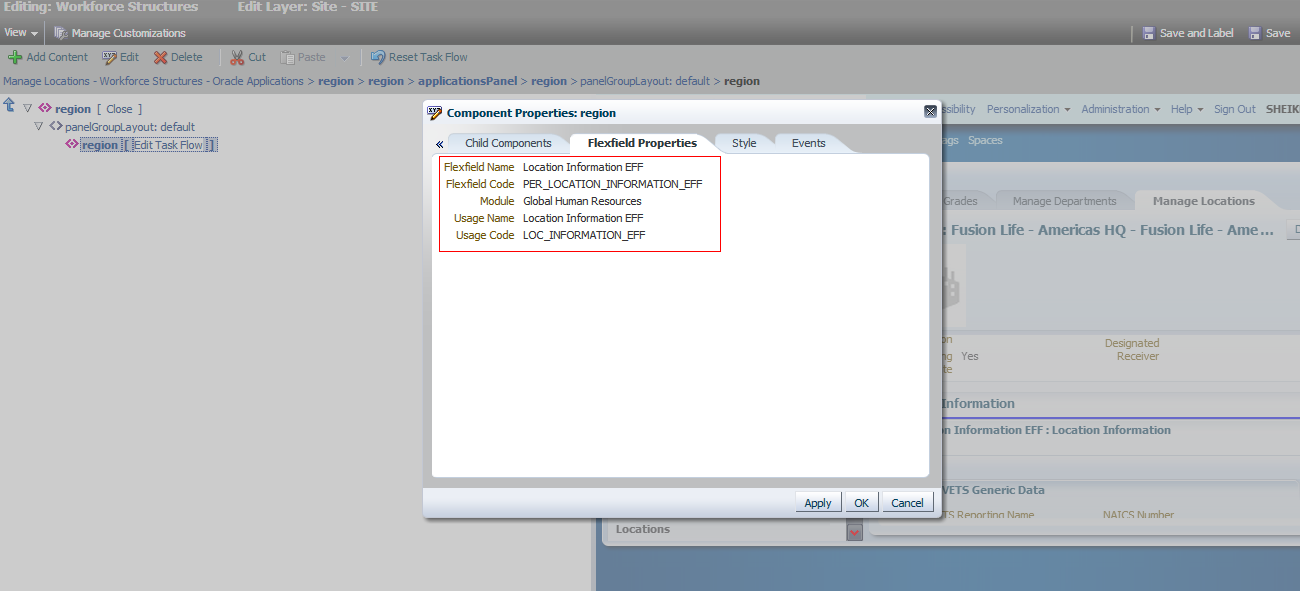
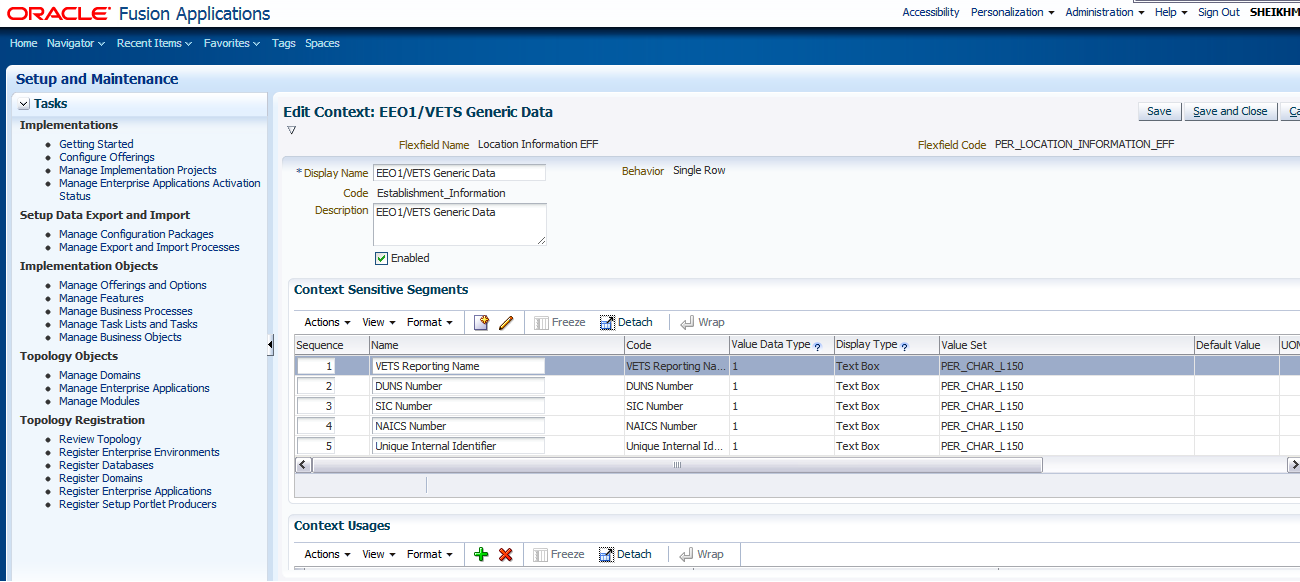
One of the activities while Implementing Fusion HCM Workforce Deployment is to create Geography and Geography Structure. This is done through FSM Task Manage Geographies. The navigation is as shown in the picture
 From FSM(Setup and Maintenance Manage Implementation Projects, Open the project which you have created and then expand and select as shown.
Once you click on Go to Task it displays the following screen
 There are 3 MOS documents which explains how to load your Geography Structure and Geography Hierarchy from CSV files. You can there is task called Address Cleansing Defined. This is where you enable Verify Address button for real time address verification if you have licensed Oracle Fusion Data Quality Address Cleansing Module.
Following are the MOS documents
Sample Geography Data (1341174.1) - This document explains how to use FSM and CSV File to upload data using File Import Utilities provided by Fusion. It has sample data for following countries which you use as reference to create your own data file for import.
GeoPlanet AU geographies.csv - sample geography data for Australia
GeoPlanet AU structures.csv - sample country structure for Australia
GeoPlanet BE geographies.csv - sample geography data for Belgium
GeoPlanet BE structures.csv - sample country structure for Belgium
GeoPlanet BR geographies.csv - sample geography data for Brazil
GeoPlanet BR structures.csv - sample country structure for Brazil
GeoPlanet CA geographies.csv - sample geography data for Canada
GeoPlanet CA structures.csv - sample country structure for Canada
GeoPlanet CH geographies.csv - sample geography data for Switzerland
GeoPlanet CH structures.csv - sample country structure for Switzerland
GeoPlanet CL geographies.csv - sample geography data for Chile
GeoPlanet CL structures.csv - sample country structure for Chile
GeoPlanet CO geographies.csv - sample geography data for Colombia
GeoPlanet CO structures.csv - sample country structure for Colombia
GeoPlanet DE geographies.csv - sample geography data for Germany
GeoPlanet DE structures.csv - sample country structure for Germany
GeoPlanet ES geographies.csv - sample geography data for Spain
GeoPlanet ES structures.csv - sample country structure for Spain
GeoPlanet FR geographies.csv - sample geography data for France
GeoPlanet FR structures.csv - sample country structure for France
GeoPlanet GB geographies.csv - sample geography data for United Kingdom
GeoPlanet GB structures.csv - sample country structure for United Kingdom
GeoPlanet HK geographies.csv - sample geography data for Hong Kong
GeoPlanet HK structures.csv - sample country structure for Hong Kong
GeoPlanet ID geographies.csv - sample geography data for Indonesia
GeoPlanet ID structures.csv - sample country structure for Indonesia
GeoPlanet IE geographies.csv - sample geography data for Ireland
GeoPlanet IE structures.csv - sample country structure for Ireland
GeoPlanet IL geographies.csv - sample geography data for Israel
GeoPlanet IL structures.csv - sample country structure for Israel
GeoPlanet IN geographies.csv - sample geography data for India
GeoPlanet IN structures.csv - sample country structure for India
GeoPlanet IT geographies.csv - sample geography data for Italy
GeoPlanet IT structures.csv - sample country structure for Italy
GeoPlanet JP geographies.csv - sample geography data for Japan
GeoPlanet JP structures.csv - sample country structure for Japan
GeoPlanet KR geographies.csv - sample geography data for Korea, Republic of
GeoPlanet KR structures.csv - sample country structure for Korea, Republic of
GeoPlanet MX geographies.csv - sample geography data for Mexico
GeoPlanet MX structures.csv - sample country structure for Mexico
GeoPlanet MY geographies.csv - sample geography data for Malaysia
GeoPlanet MY structures.csv - sample country structure for Malaysia
GeoPlanet NG geographies.csv - sample geography data for Nigeria
GeoPlanet NG structures.csv - sample country structure for Nigeria
GeoPlanet NL geographies.csv - sample geography data for Netherlands
GeoPlanet NL structures.csv - sample country structure for Netherlands
GeoPlanet RU geographies.csv - sample geography data for Russian Federation
GeoPlanet RU structures.csv - sample country structure for Russian Federation
GeoPlanet SA geographies.csv - sample geography data for Saudi Arabia
GeoPlanet SA structures.csv - sample country structure for Saudi Arabia
GeoPlanet SG geographies.csv - sample geography data for Singapore
GeoPlanet SG structures.csv - sample country structure for Singapore
GeoPlanet TH geographies.csv - sample geography data for Thailand
GeoPlanet TH structures.csv - sample country structure for Thailand
GeoPlanet TW geographies.csv - sample geography data for Taiwan
GeoPlanet TW structures.csv - sample country structure for Taiwan
GeoPlanet US geographies.csv - sample geography data for United States
GeoPlanet US structures - seeded out of box, sample file is not provided
GeoPlanet VE geographies.csv - sample geography data for Venezuela
GeoPlanet VE structures.csv - sample country structure for Venezuela
GeoPlanet VN geographies.csv - sample geography data for Viet Nam
GeoPlanet VN structures.csv - sample country structure for Viet Nam
It has also an attached document which explains step by step process to use these data files.
How to Import Geography? (1334798.1)
How to Import Country Structure? (1334789.1)
Cheers....

Once you click on Go to Task it displays the following screen

Following are the MOS documents
Sample Geography Data (1341174.1) - This document explains how to use FSM and CSV File to upload data using File Import Utilities provided by Fusion. It has sample data for following countries which you use as reference to create your own data file for import.
GeoPlanet AU geographies.csv - sample geography data for Australia
GeoPlanet AU structures.csv - sample country structure for Australia
GeoPlanet BE geographies.csv - sample geography data for Belgium
GeoPlanet BE structures.csv - sample country structure for Belgium
GeoPlanet BR geographies.csv - sample geography data for Brazil
GeoPlanet BR structures.csv - sample country structure for Brazil
GeoPlanet CA geographies.csv - sample geography data for Canada
GeoPlanet CA structures.csv - sample country structure for Canada
GeoPlanet CH geographies.csv - sample geography data for Switzerland
GeoPlanet CH structures.csv - sample country structure for Switzerland
GeoPlanet CL geographies.csv - sample geography data for Chile
GeoPlanet CL structures.csv - sample country structure for Chile
GeoPlanet CO geographies.csv - sample geography data for Colombia
GeoPlanet CO structures.csv - sample country structure for Colombia
GeoPlanet DE geographies.csv - sample geography data for Germany
GeoPlanet DE structures.csv - sample country structure for Germany
GeoPlanet ES geographies.csv - sample geography data for Spain
GeoPlanet ES structures.csv - sample country structure for Spain
GeoPlanet FR geographies.csv - sample geography data for France
GeoPlanet FR structures.csv - sample country structure for France
GeoPlanet GB geographies.csv - sample geography data for United Kingdom
GeoPlanet GB structures.csv - sample country structure for United Kingdom
GeoPlanet HK geographies.csv - sample geography data for Hong Kong
GeoPlanet HK structures.csv - sample country structure for Hong Kong
GeoPlanet ID geographies.csv - sample geography data for Indonesia
GeoPlanet ID structures.csv - sample country structure for Indonesia
GeoPlanet IE geographies.csv - sample geography data for Ireland
GeoPlanet IE structures.csv - sample country structure for Ireland
GeoPlanet IL geographies.csv - sample geography data for Israel
GeoPlanet IL structures.csv - sample country structure for Israel
GeoPlanet IN geographies.csv - sample geography data for India
GeoPlanet IN structures.csv - sample country structure for India
GeoPlanet IT geographies.csv - sample geography data for Italy
GeoPlanet IT structures.csv - sample country structure for Italy
GeoPlanet JP geographies.csv - sample geography data for Japan
GeoPlanet JP structures.csv - sample country structure for Japan
GeoPlanet KR geographies.csv - sample geography data for Korea, Republic of
GeoPlanet KR structures.csv - sample country structure for Korea, Republic of
GeoPlanet MX geographies.csv - sample geography data for Mexico
GeoPlanet MX structures.csv - sample country structure for Mexico
GeoPlanet MY geographies.csv - sample geography data for Malaysia
GeoPlanet MY structures.csv - sample country structure for Malaysia
GeoPlanet NG geographies.csv - sample geography data for Nigeria
GeoPlanet NG structures.csv - sample country structure for Nigeria
GeoPlanet NL geographies.csv - sample geography data for Netherlands
GeoPlanet NL structures.csv - sample country structure for Netherlands
GeoPlanet RU geographies.csv - sample geography data for Russian Federation
GeoPlanet RU structures.csv - sample country structure for Russian Federation
GeoPlanet SA geographies.csv - sample geography data for Saudi Arabia
GeoPlanet SA structures.csv - sample country structure for Saudi Arabia
GeoPlanet SG geographies.csv - sample geography data for Singapore
GeoPlanet SG structures.csv - sample country structure for Singapore
GeoPlanet TH geographies.csv - sample geography data for Thailand
GeoPlanet TH structures.csv - sample country structure for Thailand
GeoPlanet TW geographies.csv - sample geography data for Taiwan
GeoPlanet TW structures.csv - sample country structure for Taiwan
GeoPlanet US geographies.csv - sample geography data for United States
GeoPlanet US structures - seeded out of box, sample file is not provided
GeoPlanet VE geographies.csv - sample geography data for Venezuela
GeoPlanet VE structures.csv - sample country structure for Venezuela
GeoPlanet VN geographies.csv - sample geography data for Viet Nam
GeoPlanet VN structures.csv - sample country structure for Viet Nam
It has also an attached document which explains step by step process to use these data files.
How to Import Geography? (1334798.1)
How to Import Country Structure? (1334789.1)
Cheers....